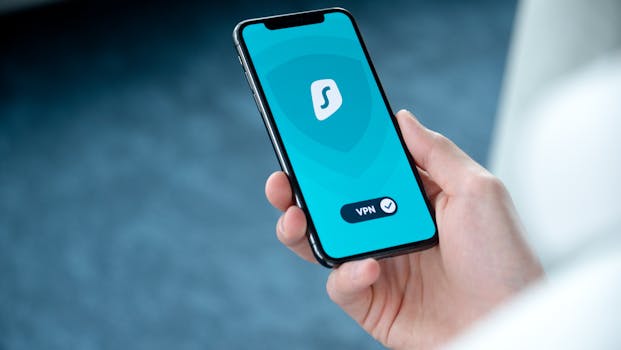
Best iPhone Apps for Secure Two Device Authentication
In today’s digital age, securing your online accounts is more important than ever. With cyber threats on the rise, utilizing two-device authentication (2FA) is a recommended best practice to enhance your security. This blog post will delve into the best iPhone apps for secure two-device authentication, allowing you to protect your personal information effectively.
Understanding Two-Device Authentication
Two-device authentication, or two-factor authentication (2FA), adds an extra layer of security to your online accounts. Instead of solely relying on a password, 2FA requires a second form of identification—usually a temporary code sent to your device or generated by an authentication app. This way, even if someone manages to steal your password, they cannot access your account without the second factor.
Why Use an Authentication App?
Authentication apps are a crucial component of two-device authentication because they provide a secure method to generate one-time codes. Unlike SMS-based verification, which can be intercepted, these apps store your codes locally and generate them in real-time. Here are some of the main benefits:
- Enhanced Security: Codes generated by apps are unique and time-sensitive.
- Offline Access: Most apps work without an internet connection, ensuring access even when offline.
- User-friendly Interface: Many authentication apps feature intuitive designs that make it easy to manage your codes.
Top iPhone Apps for Secure Two-Device Authentication
Now that we understand the importance of two-device authentication, let’s explore some of the best iPhone apps available for this purpose. Each of these apps is designed to enhance your security while providing a seamless user experience.
1. Authy
Authy is one of the most popular authentication apps for iPhone users. It offers a user-friendly interface and allows you to store multiple accounts securely. Key features include:
- Multi-Device Support: You can sync your codes across devices, making it easy to access them from your phone, tablet, or desktop.
- Backup and Restore: Authy provides encrypted backups of your account data, ensuring you never lose access if you switch devices.
- Push Notifications: Receive real-time notifications for login attempts.
For more details, check out the official Authy website.
2. Google Authenticator
Google Authenticator remains a top choice for many users due to its simplicity and effectiveness. This app generates time-based one-time passwords (TOTPs) that are valid for 30 seconds. Key features include:
- Easy Setup: Scanning a QR code or entering a setup key makes it simple to add new accounts.
- Open Source: Being open-source, it allows for transparency in security practices.
- No Internet Required: Once set up, you don’t need an internet connection to generate codes.
For more about Google Authenticator, visit the Google support page.
3. Microsoft Authenticator
Microsoft Authenticator is another reliable option that supports both personal and work accounts. Its integration with Microsoft services makes it a favorite among business users. Features include:
- Cloud Backup: Securely back up your accounts to your Microsoft account for easy restoration.
- Passwordless Login: Use your fingerprint or face ID to log in, eliminating the need for passwords altogether.
- Multi-Account Support: Easily manage personal and work accounts in one app.
Learn more about Microsoft Authenticator on the official Microsoft page.
4. LastPass Authenticator
LastPass Authenticator provides a convenient way to manage your passwords and two-factor authentication codes in one place. It’s a great choice for users who already use LastPass for password management. Here are some highlights:
- Seamless Integration: Automatically syncs with your LastPass vault for easy access.
- Backup Options: Offers cloud backups and recovery options for added security.
- Push Notifications: Receive prompt notifications for login attempts.
For further information, check out the LastPass official site.
5. Duo Mobile
Duo Mobile is particularly popular in enterprise environments where security is paramount. This app not only offers two-factor authentication but also provides insights into your account security. Noteworthy features include:
- Adaptive Authentication: Duo assesses the risk of each login attempt and adjusts security requirements accordingly.
- Device Insight: Get real-time insights into which devices are accessing your accounts.
- Integration with Many Services: Works with a wide range of services beyond just Google and Microsoft.
For more details, visit the Duo Security website.
Best Practices for Using Authentication Apps
- Choose a Strong Password: Always combine your authentication app with a strong, unique password for each account.
- Enable Biometric Security: Use Face ID or Touch ID to add an extra layer of protection to your authentication app.
- Keep Your Device Updated: Regularly update your iPhone to ensure you have the latest security patches.
- Backup Your Codes: Many apps offer backup options, so make sure to utilize them in case you lose your device.
Conclusion
Using any of the aforementioned best iPhone apps for secure two-device authentication can significantly enhance your online security. By implementing 2FA, you are taking a crucial step toward protecting your personal information from unauthorized access. Remember to regularly review and update your security settings to stay ahead of potential threats.
FAQ
- What is two-device authentication?
Two-device authentication adds an additional layer of security to your online accounts by requiring a second form of verification, usually a temporary code. - Are authentication apps safe?
Yes, authentication apps are generally safe as they generate codes locally and do not rely on SMS, which can be intercepted. - Can I use multiple authentication apps?
Yes, you can use multiple authentication apps for different accounts, but managing them effectively is essential for security. - What should I do if I lose my phone with my authentication app?
If you lose your phone, use your backup codes or recovery options provided by the authentication app to regain access to your accounts.