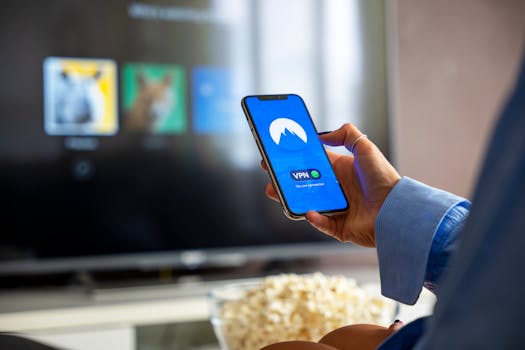
How to Detect Hidden VPN or Proxy on iPhone
In an era where online privacy is paramount, many users rely on VPNs and proxies to secure their internet connections. However, sometimes it’s crucial to know whether a hidden VPN or proxy is operating on your iPhone. This can be particularly vital for troubleshooting connectivity issues or ensuring that your data is not being rerouted through unauthorized channels. In this article, we will delve into effective methods to detect any hidden VPN or proxy on your iPhone.
Understanding VPN and Proxy
Before diving into detection methods, it’s essential to understand what a VPN and proxy are:
- VPN (Virtual Private Network): A VPN creates a secure tunnel between your device and the internet, encrypting your data and masking your IP address.
- Proxy Server: A proxy acts as an intermediary between your device and the internet, routing your requests through its server, which can hide your actual IP address but typically doesn’t encrypt your data.
Both tools are beneficial for privacy but can sometimes cause issues if misconfigured or left running when not needed. Here’s how to find out if they’re hidden on your iPhone.
Check VPN Settings on Your iPhone
The first step in detecting a hidden VPN or proxy is to check the built-in settings on your iPhone. Follow these steps:
- Open the Settings app on your iPhone.
- Scroll down and tap on VPN.
- Here, you will see any active VPN configurations. If a VPN is connected, it will display a green indicator.
If there are any VPN profiles you don’t recognize, you might consider removing them if you don’t need them. You can delete a VPN configuration by tapping the “i” icon next to the VPN and selecting Delete VPN.
Identifying Proxy Settings
In addition to VPNs, proxies can also be configured on your iPhone. To check for proxy settings:
- Open the Settings app.
- Tap on Wi-Fi.
- Find your current network and tap the information icon (i) next to it.
- Scroll down to find the HTTP Proxy section.
If the proxy is set to Manual or Auto, it indicates that your traffic may be routed through a proxy server. You can change this setting to Off to disable the proxy.
Checking for VPN or Proxy Indicators
iOS has built-in indicators when a VPN is active. You will see a small VPN icon in the status bar at the top of your screen. However, if you’re unsure whether a VPN or proxy is genuinely active, verify using the following:
- Check Network Connection: Open a web browser and visit a site like WhatIsMyIP.com to see if your IP address reflects that of the VPN or proxy server.
- Use a VPN Detection Tool: Websites such as IP Location can help you identify if your current IP address is known to be associated with a VPN or proxy service.
Third-Party Apps for VPN Detection
If you want more robust detection capabilities, consider using third-party applications designed for monitoring network activity. Some of these apps can provide insights into any hidden VPNs or proxies running on your iPhone.
Popular options include:
- Network Analyzer: This app provides detailed information about your network and can help identify any unusual connections.
- VPN Check: Specifically designed to check VPN connections, this app can help you determine if your VPN is operating as expected.
Reset Network Settings
If you suspect a hidden VPN or proxy but cannot find it through the usual methods, you can reset your network settings. This action will erase all saved Wi-Fi networks, VPN settings, and cellular settings:
- Go to Settings.
- Tap on General.
- Scroll down and select Transfer or Reset iPhone.
- Tap Reset and choose Reset Network Settings.
After performing this step, you’ll need to reconnect to your Wi-Fi networks and reconfigure any VPN settings you wish to retain.
Consulting iOS Documentation
For the most accurate information on managing VPN and proxy settings, always refer to the official Apple documentation. The Apple Support page provides comprehensive guidance on VPN and proxy settings on iOS devices. This resource can help clarify any doubts and ensure your iPhone is configured correctly.
Why It Matters to Detect Hidden VPN or Proxy
Understanding whether a hidden VPN or proxy is active can significantly impact your device’s performance and security. Here’s why it’s essential:
- Security Risks: Unmonitored VPN connections can expose your data to potential threats.
- Performance Issues: Active proxies or VPNs can slow down your internet speed, affecting your browsing experience.
- Compliance: If you are using your device in a corporate environment, unauthorized VPNs or proxies may violate company policies.
Conclusion
Having the ability to detect a hidden VPN or proxy on your iPhone is crucial for maintaining your online security and ensuring optimal device performance. By following the methods outlined above, you can effectively identify any unexpected VPN or proxy activity and take action accordingly.
FAQ
1. Can I keep a VPN on my iPhone without it being detected?
Yes, if you configure your VPN correctly, it can run in the background without being actively visible. However, you can check the settings as described above.
2. Are there risks in using free VPN services?
Yes, many free VPN services may compromise your privacy by logging your data or injecting ads. Always use reputable services.
3. How can I tell if my internet speed is affected by a VPN?
You can run a speed test with and without the VPN connected to compare performance.
4. What should I do if I find an unknown VPN or proxy?
If you find an unknown configuration, consider deleting it immediately and running a security scan if necessary.
By understanding the nuances of VPN and proxy settings on your iPhone, you can maintain a secure and efficient online presence.