- 1. Understanding iPhone’s Tracking Features
- 2. Disabling Location Tracking
- 3. Adjusting Advertising Settings
- 4. Controlling App Tracking
- 5. Disabling Analytics Sharing
- 6. Managing Contacts and Photos Privacy
- 7. Utilizing Safari’s Privacy Features
- 8. Regularly Reviewing Your Privacy Settings
- 9. Conclusion
- 10. Frequently Asked Questions
How to Disable Hidden Tracking Features on iPhone
The rise of digital privacy concerns has led many iPhone users to seek ways to safeguard their personal information. Apple has made strides to enhance user privacy, but it’s essential to understand how to disable hidden tracking features on iPhone devices effectively. This blog post provides a comprehensive guide to help you navigate your iPhone’s settings and take control of your privacy.
Understanding iPhone’s Tracking Features
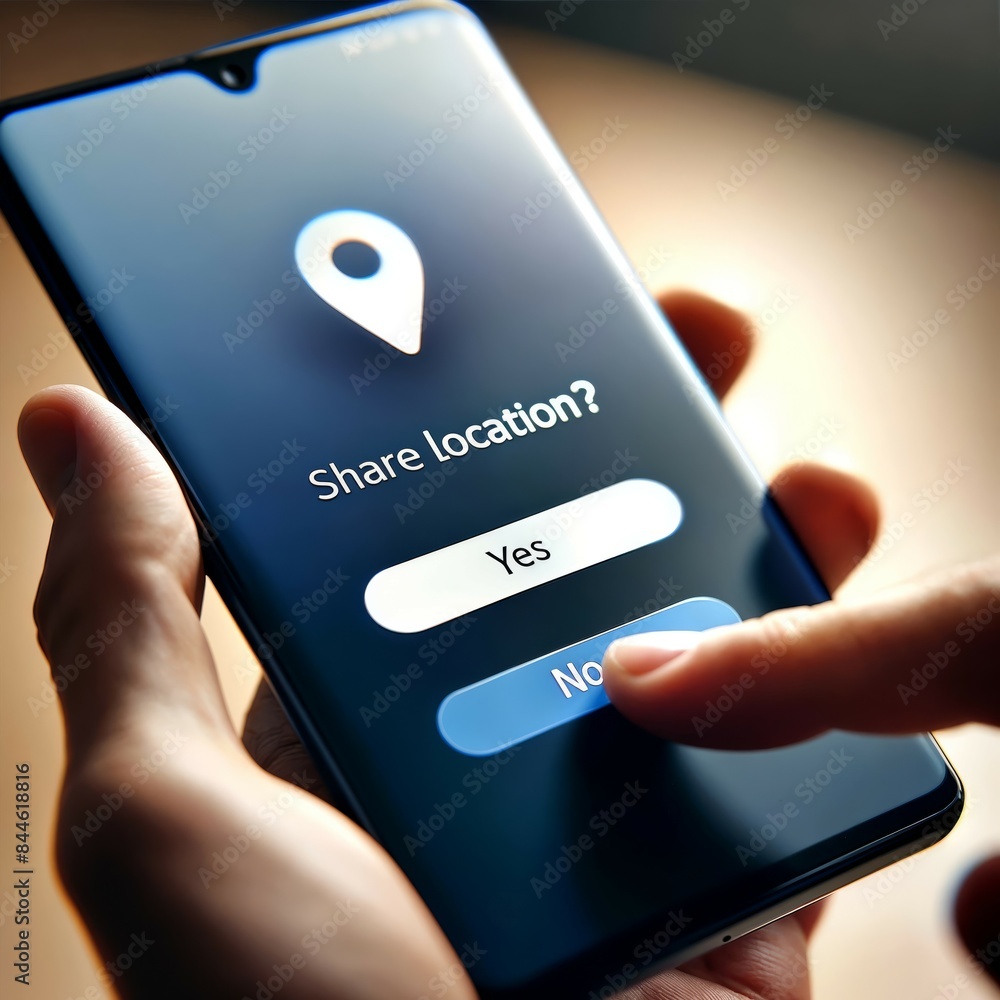
iPhones come equipped with various tracking features that can collect data for personalized advertising, location services, and user experience improvements. While some users appreciate these features, others prefer to keep their data private. Understanding these features is the first step in disabling them.
- Location Tracking: Apps may request access to your location to provide services or advertisements.
- Advertising Tracking: Apple uses your data to tailor advertisements to your preferences.
- App Tracking: Some apps can track your activity across different platforms.
Disabling Location Tracking
One of the most significant tracking features on the iPhone is location tracking. Here’s how to disable it:
Step 1: Open Location Services
Navigate to Settings > Privacy & Security > Location Services.
Step 2: Manage Location Access
You will see a list of apps that have requested location access. You can choose from:
- Never: Prevents the app from accessing your location.
- While Using the App: Grants access only when the app is in use.
- Always: Allows the app to access your location at any time.
For maximum privacy, consider setting apps to Never or While Using the App options. Additionally, scroll down to the bottom and select System Services to manage location settings related to system applications.
Adjusting Advertising Settings
To further protect your data, it’s crucial to manage your advertising preferences. Here’s how you can disable targeted advertising on your iPhone:
Step 1: Access Advertising Settings
Go to Settings > Privacy & Security > Apple Advertising.
Step 2: Disable Personalized Ads
Toggle off the option for Personalized Ads. This will prevent Apple from using your information to tailor advertisements to your interests.
Controlling App Tracking
With the introduction of iOS 14.5, Apple implemented the App Tracking Transparency feature, giving users greater control over how apps track their data. Here’s how to manage app tracking:
Step 1: Enable App Tracking Transparency
Navigate to Settings > Privacy & Security > Tracking.
Step 2: Adjust Tracking Permissions
You will see a toggle for Allow Apps to Request to Track. You can disable this option to stop apps from asking for permission to track your data across other apps and websites.
Step 3: Manage Existing Permissions
Below this option, you will see a list of apps that have requested tracking permissions. You can toggle off tracking for individual apps as needed.
Disabling Analytics Sharing
Sharing analytics data can help Apple improve its products, but many users prefer to keep this information private. Here’s how to disable it:
Step 1: Navigate to Analytics Settings
Go to Settings > Privacy & Security > Analytics & Improvements.
Step 2: Turn Off Analytics Sharing
Here, you can turn off options like Share iPhone Analytics and Share with App Developers. Disabling these options ensures that your usage data won’t be shared with Apple or third-party developers.
Managing Contacts and Photos Privacy
Many apps request access to your contacts and photos. Here’s how to manage these permissions:
Step 1: Access Contacts and Photos Settings
Go to Settings > Privacy & Security > Contacts and Photos.
Step 2: Review App Permissions
Review the list of apps that have requested access to your contacts and photos. For maximum privacy, consider setting access to Never or While Using the App.
Utilizing Safari’s Privacy Features
If you use Safari as your primary browser, there are built-in privacy features that you can enable to enhance your browsing experience:
Step 1: Access Safari Settings
Go to Settings > Safari.
Step 2: Enable Privacy Features
Toggle on the following options:
- Prevent Cross-Site Tracking: This prevents advertisers from tracking your browsing activity across different websites.
- Block All Cookies: This will prevent websites from storing cookies on your device.
- Fraudulent Website Warning: This alerts you if you visit a known malicious website.
Regularly Reviewing Your Privacy Settings
iOS is continually updated, and new features are often added. It’s essential to regularly review your privacy settings to ensure that they align with your preferences. Setting a reminder to check your privacy settings every few months can help keep your information secure.
Conclusion
By following the steps outlined in this guide, you can effectively disable hidden tracking features on your iPhone. Taking control of your privacy settings not only enhances your personal security but also allows you to enjoy your device with peace of mind.
Frequently Asked Questions
1. Can I completely disable tracking on my iPhone?
While you can significantly reduce tracking by adjusting various settings, some functions may still operate in the background for essential services. However, you can minimize tracking through the steps outlined in this blog.
2. Will disabling tracking affect app functionality?
Yes, some apps may not function correctly without access to certain data, such as location services. It’s crucial to balance privacy with the necessary functionality of your apps.
3. How often should I check my privacy settings?
It’s a good idea to review your privacy settings every few months or after significant iOS updates to ensure that they align with your privacy preferences.
4. Does disabling tracking improve battery life?
In some cases, disabling location tracking and background app activity can help improve battery life, as fewer processes will be running in the background.