- 1. Understanding System Alerts on iPhone
- 2. Disabling Notification Alerts from Individual Apps
- 3. Managing System Alerts via Focus Mode
- 4. Disabling Location Services Alerts
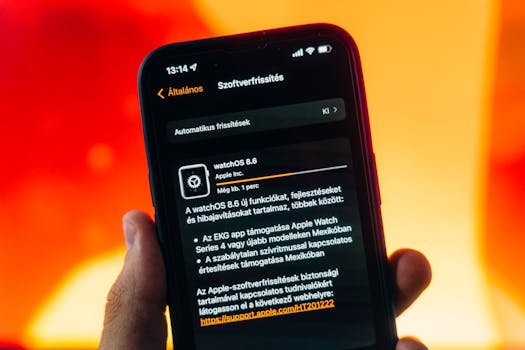
- 5. Turning Off System Alerts for Software Updates
- 6. Disabling Battery Alerts
- 7. Managing Privacy Alerts
- 8. Turning Off System Alerts for Siri
- 9. Resetting All Settings to Manage Alerts
- 10. Conclusion
- 11. FAQ
How to Disable Unwanted System Alerts on iPhone
Modern iPhones come packed with features, but sometimes this can lead to an overload of system alerts that can be distracting or even annoying. Whether it’s reminders, notifications, or warnings, you may find yourself wanting to disable unwanted system alerts to enhance your user experience. In this guide, we will walk you through various methods to manage and disable these alerts effectively.
Understanding System Alerts on iPhone
System alerts are notifications generated by iOS to inform you about various aspects of your device’s functionality. These alerts can include:
- Software updates
- Battery warnings
- Location services notifications
- App notifications
- Privacy alerts
While many of these alerts are important for device functionality, not all may be relevant or necessary for your daily use. Luckily, iOS provides settings that allow you to manage these notifications.
Disabling Notification Alerts from Individual Apps
If you find that specific apps are sending too many notifications, you can easily adjust their settings:
- Open the Settings app on your iPhone.
- Scroll down and select Notifications.
- You will see a list of apps. Tap on the app you want to manage.
- Toggle off Allow Notifications to completely disable alerts from that app. Alternatively, you can customize the type of notifications you receive by adjusting alerts, sounds, and badges.
This method allows you to tailor notifications to your preference, ensuring you only receive alerts that matter to you.
Managing System Alerts via Focus Mode
iOS includes a feature called Focus Mode that allows you to minimize distractions by filtering notifications. You can customize Focus Modes based on your activities, such as work, personal time, or sleep:
- Go to the Settings app.
- Select Focus.
- Tap on + to create a new Focus mode or select an existing one to customize.
- Choose which people and apps can send notifications when this mode is activated.
- Activate your Focus mode to limit incoming alerts.
By using Focus Mode, you can effectively manage when and how you receive system alerts, allowing for a more streamlined experience.
Disabling Location Services Alerts
Some system alerts are related to location services, which can be particularly invasive. To manage these alerts:
- Open the Settings app.
- Scroll down to Privacy & Security.
- Tap on Location Services.
- Here, you can see all the apps that use location services. Select an app and choose Never or While Using the App to limit notifications.
This action can help reduce the frequency of location-based alerts that may be cluttering your notification center.
Turning Off System Alerts for Software Updates
While it’s essential to keep your iPhone up to date, you may wish to disable alerts for software updates:
- Open the Settings app.
- Select General.
- Tap on Software Update.
- Tap on Automatic Updates and toggle it off.
By disabling automatic updates, you will no longer receive system alerts prompting you to update your software. However, remember to check for updates manually to keep your device secure.
Disabling Battery Alerts
Battery alerts can be another source of annoyance, especially if you consistently charge your phone. To minimize these alerts:
- Go to the Settings app.
- Select Battery.
- Here, you can view battery health and usage but cannot directly disable battery alerts. However, you can enable Low Power Mode to reduce notifications related to low battery warnings.
Keep in mind that while you can’t fully turn off battery alerts, using Low Power Mode can help manage how often you receive them.
Managing Privacy Alerts
iOS may also send alerts regarding privacy settings, especially in relation to app permissions. If you’d like to manage these:
- Open the Settings app.
- Scroll down and select Privacy & Security.
- Review settings under sections like Tracking, Location Services, and Contacts to manage app permissions.
By limiting the permissions you grant to apps, you can reduce the frequency of privacy-related alerts.
Turning Off System Alerts for Siri
If you find Siri’s alerts interruptive, you can also manage those settings:
- Go to the Settings app.
- Scroll down and tap on Siri & Search.
- Toggle off Suggestions in Search, Suggestions in Look Up, and Suggestions on Lock Screen to limit alerts.
Disabling these features can help create a quieter experience with fewer interruptions.
Resetting All Settings to Manage Alerts
If you are overwhelmed with notifications and prefer to start fresh, you have the option to reset all settings:
- Open the Settings app.
- Select General.
- Scroll down and tap on Transfer or Reset iPhone.
- Choose Reset and then select Reset All Settings.
This action will not delete your personal data but will reset system settings, including notifications, back to their defaults. You can then customize them according to your preferences.
Conclusion
Managing unwanted system alerts on your iPhone can significantly enhance your user experience. With a few adjustments to your settings, you can tailor notifications to suit your lifestyle and reduce distractions. For more detailed information, you can always refer to the official Apple Support Page for iOS.
FAQ
Can I disable all notifications on my iPhone?
Yes, you can disable all notifications by going into the Settings app, selecting Notifications, and toggling off Allow Notifications for individual apps. However, iOS does not provide a universal toggle to disable all notifications at once.
Will disabling notifications affect app functionality?
Disabling notifications may limit your awareness of important updates from apps, such as messages, alerts, or reminders. It’s advisable to selectively disable notifications for apps that are less relevant to you.
How can I re-enable notifications after disabling them?
Simply return to the Settings app, go to Notifications, select the app, and toggle on Allow Notifications again.
Can I turn off Siri completely to avoid alerts?
Yes, you can disable Siri by going to the Settings app, selecting Siri & Search, and toggling off Listen for “Hey Siri” and Press Side Button for Siri.
What should I do if I’m still receiving unwanted alerts?
If unwanted alerts persist, consider reviewing each app’s notification settings and checking for any lingering settings in the Focus mode or Privacy & Security settings that might be causing them.