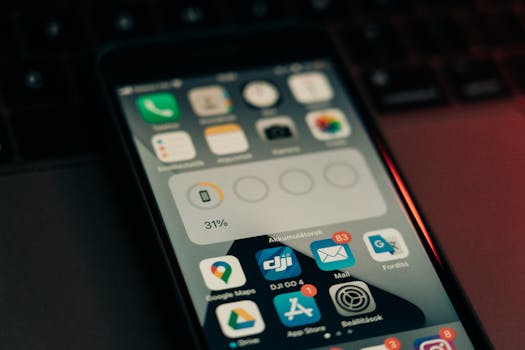
How to Find Apps That Are Draining Battery on iPhone
The iPhone is renowned for its performance, but over time, you might notice that your device’s battery life is not what it used to be. One of the primary culprits behind battery drain is the applications you have installed. In this post, we’ll explore how to identify apps that are draining battery on iPhone and offer solutions to improve your device’s longevity.
Understanding Battery Usage on iPhone
Before diving into the specifics of finding battery-draining apps, it’s essential to understand how iOS manages battery usage. The operating system is designed to optimize battery life, but certain apps can still consume more power than necessary. Apple provides built-in tools to help users monitor their battery usage effectively.
Accessing Battery Usage Statistics
To identify which apps are draining your iPhone’s battery, follow these steps:
- Open the Settings app on your iPhone.
- Scroll down and tap on Battery.
Here, you will find a detailed breakdown of your battery usage. The Battery section displays:
- Battery percentage for the last 24 hours or the last 10 days.
- List of apps that have used your battery, sorted by usage.
Interpreting Battery Usage Data
Once you access the Battery section, you’ll see a list of apps along with their respective usage percentages. Here’s how to interpret the data:
- Screen On vs. Background Activity: The statistics will show how much battery was drained while the app was actively in use versus when it was running in the background. Apps with high background activity can significantly affect your battery life.
- Time Spent: If an app has consumed a large percentage of your battery, review how much time you’ve spent using it, as excessive usage can quickly deplete your battery.
- Background App Refresh: Apps that refresh their data in the background can drain battery life without you even realizing it. Consider disabling this feature for apps that don’t need to constantly update.
Common Battery-Draining Apps
Several apps are notorious for consuming excessive battery life. Here are some common categories you should be mindful of:
- Social Media Apps: Platforms like Facebook, Instagram, and Twitter often run constantly in the background to update feeds and notifications.
- Location Services: Apps that use GPS to provide services, such as Google Maps, can rapidly drain your battery, especially if location services are set to “Always.”
- Streaming Services: Apps like Netflix and Spotify can consume a lot of power when streaming content, particularly in high-quality formats.
- Games: High-performance games require more processing power, leading to increased battery consumption.
Limiting Battery Drain from Apps
Once you have identified the apps that are draining battery on iPhone, it’s time to take action. Here are some effective strategies:
1. Optimize Location Services
Adjusting your location settings can significantly help conserve battery life:
- Go to Settings.
- Tap on Privacy & Security, then select Location Services.
- Choose the apps that don’t require constant location access and set them to While Using the App or Never.
2. Disable Background App Refresh
To prevent apps from refreshing content in the background:
- Open Settings.
- Select General, then tap on Background App Refresh.
- You can choose to turn it off entirely or selectively disable it for specific apps.
3. Limit Push Notifications
Push notifications can also contribute to battery drain. To manage your notifications:
- Head to Settings.
- Tap on Notifications and review the apps that send notifications.
- Disable notifications for apps that you don’t need to be updated about frequently.
4. Update Your Apps
Developers frequently release updates that enhance app performance and reduce battery consumption. Regularly check for updates in the App Store:
- Open the App Store.
- Tap on your profile icon in the upper right corner.
- Scroll down to view pending updates and tap Update All.
5. Use Low Power Mode
Activating Low Power Mode can help extend your battery life by reducing background activity:
- Open Settings.
- Tap on Battery and toggle on Low Power Mode.
6. Delete or Offload Unused Apps
If certain apps are consistently draining your battery and you rarely use them, consider deleting or offloading them:
- Go to Settings.
- Select General and then tap on iPhone Storage.
- Review the list of apps and choose to Delete App or Offload App for those you don’t frequently use.
When to Consider a Battery Replacement
If you have followed the steps above and are still struggling with battery performance, it may be time to consider a battery replacement. Over time, iPhone batteries naturally degrade, leading to diminished battery life. You can check your battery health by going to:
- Open Settings.
- Tap on Battery and select Battery Health & Charging.
If your battery health is significantly below 80%, it may be worth visiting an Apple Store or an authorized service provider for a replacement.
Conclusion
Monitoring and managing apps that are draining battery on iPhone can significantly enhance your device’s performance and longevity. By utilizing the built-in tools provided by Apple and optimizing your app settings, you can enjoy your iPhone without the constant worry of battery drain.
FAQs
How can I check which apps are using the most battery on my iPhone?
You can check battery usage by going to Settings > Battery, where you’ll find a list of apps and their battery consumption.
What should I do if an app is draining my battery excessively?
Consider limiting its background activity, adjusting location settings, or even deleting the app if it’s not essential.
Does Low Power Mode affect app performance?
Yes, Low Power Mode limits background activity and reduces performance to conserve battery life.
How often should I replace my iPhone battery?
Typically, iPhone batteries can last about 2-3 years, but this can vary based on usage. Check your battery health regularly in Settings > Battery > Battery Health & Charging.
For more detailed information, you can refer to the official Apple documentation on battery usage and optimization.