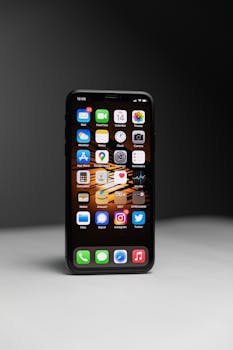
How to Protect iPhone From Unwanted Profile Installs
In today’s digital age, ensuring the security of your devices is paramount. One of the lesser-known threats to iPhone users is the installation of unwanted profiles. These profiles can grant unauthorized access to your data, manipulate your settings, and even compromise your privacy. In this guide, we will explore how to protect your iPhone from unwanted profile installs and maintain your device’s integrity.
Understanding iPhone Profiles
Before diving into protection strategies, it’s essential to understand what profiles are. Profiles on iOS are configuration settings that allow users to manage various features on their devices, including Wi-Fi settings, VPN configurations, and more. While many profiles are legitimate, especially in enterprise environments, some can be malicious.
As noted on the Apple Support page, profiles can be installed from the App Store, websites, or email. This flexibility can be exploited by malicious actors, making it crucial to recognize and prevent unwanted installations.
Signs of Unwanted Profile Installs
Being aware of the signs of unwanted profile installations can help you act promptly:
- Unrecognized Profiles: If you see profiles that you did not intentionally install, this might indicate a security issue.
- Unusual Behavior: If your iPhone exhibits strange behavior, such as unexpected pop-ups or settings changes, it might be due to a malicious profile.
- Excessive Data Usage: Some profiles can route your internet traffic, leading to higher data usage.
How to Check for Installed Profiles
To check if there are any installed profiles on your iPhone, follow these steps:
- Open the Settings app.
- Navigate to General.
- Scroll down and tap on VPN & Device Management (or Profiles on older iOS versions).
Here, you’ll see any profiles that are installed. If you find any that you do not recognize, it’s essential to take action immediately.
Best Practices to Prevent Unwanted Profile Installs
To safeguard your iPhone from unwanted profiles, consider the following best practices:
1. Be Cautious with Links and Downloads
One of the most common ways for unwanted profiles to be installed is through links in emails, text messages, or websites. Always be wary of clicking on unknown links. If a website prompts you to install a profile, think twice before proceeding.
2. Verify App Sources
Only download apps from the App Store. Avoid third-party app stores or suspicious websites, as these can be breeding grounds for malware and unwanted profiles. According to Apple’s App Store guidelines, apps must meet strict security and privacy standards, making it a safer choice.
3. Regularly Review Installed Profiles
Make it a habit to check for installed profiles periodically. If you notice any unfamiliar profiles, remove them immediately. You can do this by selecting the profile and choosing Remove Profile.
4. Keep Your iOS Updated
Apple regularly releases updates that include security patches and enhancements. Keeping your iPhone updated minimizes vulnerabilities that malicious actors could exploit. To check for updates, go to Settings > General > Software Update.
5. Enable Two-Factor Authentication
Using Two-Factor Authentication (2FA) adds an extra layer of security to your Apple ID. This makes it significantly more challenging for unauthorized users to access your account and install unwanted profiles. To enable 2FA, go to Settings > [your name] > Password & Security.
6. Use a VPN
A reputable VPN service can provide an additional layer of security by encrypting your internet traffic and masking your IP address. This makes it more difficult for malicious actors to target you with phishing schemes that aim to install unwanted profiles.
7. Limit App Permissions
Review the permissions granted to your apps. Some applications may request access to features that are unnecessary for their functionality. By limiting permissions, you reduce the risk of apps behaving in ways that could lead to unwanted profile installations. You can manage app permissions in Settings > Privacy & Security.
What to Do If You Discover an Unwanted Profile
If you find an unwanted profile installed on your iPhone, take immediate action:
- Remove the unwanted profile by going to Settings > General > VPN & Device Management.
- Change your Apple ID password to prevent any further unauthorized access.
- Run a security check by monitoring your accounts for unusual activity.
- If necessary, consider performing a factory reset of your iPhone, but ensure you back up your data first.
Educating Yourself About Phishing Scams
Education is your first line of defense against unwanted profile installs. Familiarize yourself with common phishing tactics that can lead to profile installations:
- Phishing Emails: Be cautious of emails that appear to be from legitimate sources but contain suspicious links.
- Fake Websites: Always double-check URLs before entering any personal information.
- Social Engineering: Be wary of unsolicited messages that ask for your Apple ID or other sensitive information.
Additional Resources
For more information on how to secure your iPhone, consider visiting the following resources:
FAQ
What is an iPhone profile?
An iPhone profile is a configuration file that allows users to manage settings and features on their devices. They can be used for VPN configurations, Wi-Fi settings, and more.
How do I know if a profile is malicious?
If you encounter a profile that you did not intentionally install or if it exhibits suspicious behavior, it may be malicious. Always verify the source before installation.
Can I prevent all unwanted profile installations?
While you cannot prevent all potential threats, following best practices—such as being cautious with downloads, keeping your iOS updated, and using a VPN—will significantly reduce your risk.
What should I do if I accidentally install a malicious profile?
Immediately remove the profile via Settings > General > VPN & Device Management, change your Apple ID password, and monitor your accounts for any suspicious activity.
By following the strategies outlined in this guide, you can effectively protect your iPhone from unwanted profile installs and ensure your device remains secure.