- 1. Understanding Rogue WiFi Networks
- 2. 1. Change Your WiFi Settings
- 3. 2. Use a VPN
- 4. 3. Enable Two-Factor Authentication
- 5. 4. Keep Your iPhone Updated
- 6. 5. Use HTTPS and Encrypted Websites
- 7. 6. Disable Sharing Features
- 8. 7. Monitor Your Network Connections
- 9. 8. Be Aware of Phishing Attempts
- 10. 9. Use Security Apps
- 11. 10. Educate Yourself About Security Risks
- 12. FAQ
How to Secure iPhone Against Rogue WiFi Networks
In an era where connectivity is paramount, securing your iPhone against rogue WiFi networks is more important than ever. The convenience of wireless internet comes with significant risks, especially when connecting to public networks. This guide will delve into the various methods to protect your iPhone from potential threats posed by these unsecured connections.
Understanding Rogue WiFi Networks
Rogue WiFi networks are unauthorized or malicious networks that can intercept data and compromise your device’s security. Often set up in public places like cafes or airports, these networks can trick users into connecting, leading to data theft or privacy breaches. Recognizing how these networks operate is the first step in safeguarding your iPhone.
1. Change Your WiFi Settings
One of the most effective methods to secure your iPhone against rogue WiFi networks is to adjust its WiFi settings:
- Forget Unused Networks: Go to Settings > WiFi. Tap the information icon next to networks you no longer use and select Forget This Network.
- Disable Auto-Join: Under the same WiFi settings, you can prevent your iPhone from automatically connecting to unknown networks. Disable the Auto-Join feature for all public networks.
These simple steps can significantly reduce the risk of connecting to a rogue network without your knowledge.
2. Use a VPN
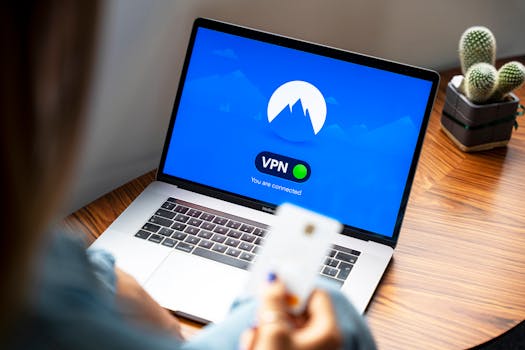
A Virtual Private Network (VPN) is an essential tool for anyone concerned about online security. When you use a VPN, your internet traffic is encrypted, making it much harder for hackers to intercept your data on rogue WiFi networks.
To set up a VPN on your iPhone:
- Choose a reputable VPN provider. Look for one with a no-logs policy and strong encryption standards.
- Download the VPN app from the App Store and follow the setup instructions.
- Once configured, ensure the VPN is active whenever you connect to public WiFi.
The added layer of security that a VPN provides is invaluable in protecting your personal information.
3. Enable Two-Factor Authentication
Two-factor authentication (2FA) adds an extra layer of security to your Apple ID and other accounts. Even if someone gains access to your password, they would still need the second form of verification to access your account.
To enable 2FA:
- Go to Settings > Your Name > Password & Security.
- Select Two-Factor Authentication and follow the prompts to turn it on.
This feature is crucial for securing your accounts, especially when using potentially unsecured networks.
4. Keep Your iPhone Updated
Apple regularly releases updates that include security patches and improvements. Keeping your iPhone updated is essential for protecting against the latest vulnerabilities.
To check for updates:
- Open Settings > General > Software Update.
- If an update is available, follow the prompts to install it.
Regular updates ensure that your device has the latest security features, minimizing the risk of exploitation.
5. Use HTTPS and Encrypted Websites
When browsing the internet, always check for HTTPS in the URL. This indicates that the website is using a secure connection, protecting your data during transmission. Many browsers also offer extensions that alert you when you’re about to enter an unsecured site.
To enhance your security further:
- Use browsers that prioritize security, such as Safari, which integrates various security measures.
- Consider using browser extensions that force HTTPS connections whenever possible.
6. Disable Sharing Features
Many sharing features can inadvertently expose your device to security risks, especially on public networks. To minimize this risk:
- Go to Settings > Privacy and disable features like AirDrop and Personal Hotspot when not in use.
- Review your Bluetooth settings and turn off Bluetooth when you’re not using it, as it can be exploited on public networks.
Disabling these features can help keep your device secure, particularly when you’re connected to unfamiliar networks.
7. Monitor Your Network Connections
Regularly checking the networks your iPhone is connected to can help you identify any unauthorized connections. Ensure that you recognize the networks you are connected to and immediately disconnect from any that seem suspicious.
To monitor your connections:
- Go to Settings > WiFi and review the list of networks.
- Disconnect from any network that you do not recognize or remember using.
8. Be Aware of Phishing Attempts
Rogue networks often use phishing tactics to lure users into revealing sensitive information. Always be cautious of emails, messages, or notifications requesting personal information. Verify the source before clicking on any links or providing information.
9. Use Security Apps
There are various security applications available that can help protect your iPhone from rogue WiFi networks. These apps can detect unsecured networks and provide alerts about potential threats.
Some popular security apps include:
- Lookout: This app offers security and identity theft protection.
- NordVPN: In addition to being a VPN, it provides additional security features.
- McAfee Mobile Security: This app offers comprehensive security features, including network security.
10. Educate Yourself About Security Risks
Understanding the risks associated with rogue WiFi networks is vital. Familiarize yourself with common tactics used by hackers and stay informed about the latest security threats. Knowledge is your first line of defense.
For more information on iPhone security, you can refer to the official Apple support page on iPhone security features.
FAQ
What is a rogue WiFi network?
A rogue WiFi network is an unauthorized network that can be set up by malicious actors to intercept data or compromise connected devices.
How can I tell if a WiFi network is safe?
Look for networks that are password-protected and have a reputable name. Avoid connecting to open networks without verification.
Is it safe to use public WiFi with a VPN?
Yes, using a VPN on public WiFi provides an added layer of security, encrypting your data and protecting your privacy.
What should I do if I accidentally connected to a rogue network?
Disconnect immediately, forget the network in your settings, and monitor your accounts for any suspicious activity.
How often should I update my iPhone?
It is advisable to check for iOS updates regularly, ideally every few weeks, to ensure your device has the latest security patches.
By following these guidelines and taking proactive measures, you can effectively secure your iPhone against rogue WiFi networks and enjoy a safer online experience.