- 1. Understanding DNS and Its Impact on Privacy
- 2. Choosing a Secure DNS Provider
- 3. How to Change DNS Settings on Your iPhone
- 4. Considerations for Mobile Data Users
- 5. Using a VPN for Enhanced Privacy
- 6. Additional Privacy Tips for Your iPhone
- 7. What to Do If DNS Changes Don’t Take Effect
- 8. Conclusion
- 9. FAQ
How to Secure iPhone DNS Settings for Privacy
In an era where online privacy is paramount, securing your iPhone DNS settings is essential. The Domain Name System (DNS) is integral to how your device connects to the internet, translating domain names into IP addresses. If you’re concerned about your online privacy, adjusting your DNS settings can be a crucial step. In this guide, we’ll explore how to secure your iPhone DNS settings for enhanced privacy.
Understanding DNS and Its Impact on Privacy
The DNS is like the phonebook of the internet. When you type a web address, your iPhone sends a request to a DNS server to retrieve the corresponding IP address. However, your DNS requests can reveal a lot about your browsing habits. By default, your ISP (Internet Service Provider) manages these requests, which can lead to potential privacy risks.
Using a secure DNS can protect your data from being logged or monitored. This is where configuring your iPhone DNS settings becomes crucial.
Choosing a Secure DNS Provider
To enhance your privacy, consider using a secure DNS provider. Popular options include:
- Cloudflare DNS: 1.1.1.1 is designed for speed and privacy, ensuring that your browsing history isn’t logged.
- Google DNS: 8.8.8.8 is another reliable choice, though it’s essential to understand that Google may log your DNS queries.
- OpenDNS: 208.67.222.222 offers additional security features and customizable filtering options.
Before you configure your iPhone, research each provider to choose one that aligns with your privacy preferences.
How to Change DNS Settings on Your iPhone
Now that you’ve chosen a secure DNS provider, follow these steps to change your DNS settings:
- Open Settings: Locate and tap the Settings app on your iPhone.
- Wi-Fi Settings: Tap on Wi-Fi to see available networks.
- Select Your Network: Find your connected network, and tap the i icon next to it.
- Configure DNS: Scroll down to find the Configure DNS option, which is usually set to Automatic.
- Change to Manual: Tap Manual. You’ll see fields to enter DNS server addresses.
- Enter DNS Addresses: Delete any existing addresses and enter the DNS addresses of your chosen provider. For example, for Cloudflare, enter 1.1.1.1 and 1.0.0.1.
- Save Changes: Tap Save at the top right corner of the screen.
After completing these steps, your iPhone will now use the new DNS settings, enhancing your privacy while browsing.
Considerations for Mobile Data Users
If you primarily use mobile data instead of Wi-Fi, you can also change the DNS settings for your cellular connection. Here’s how:
- Open Settings: Go to the Settings app.
- Cellular Settings: Tap on Cellular.
- Cellular Data Options: Select Cellular Data Options, then tap on Cellular Network.
- Enter DNS Addresses: Similar to the Wi-Fi steps, locate the DNS fields and input the addresses of your chosen DNS provider.
- Save Changes: Exit the settings to save your changes.
Using a VPN for Enhanced Privacy
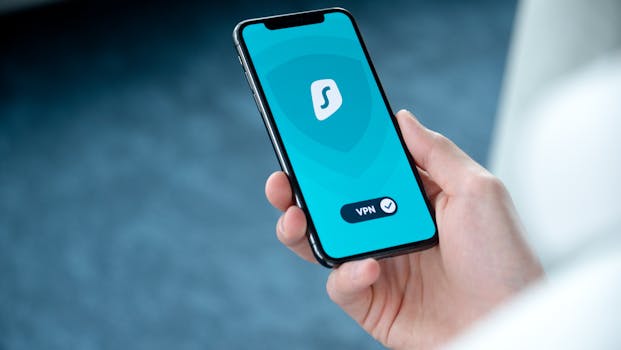
While adjusting your iPhone DNS settings is a significant step towards privacy, consider using a Virtual Private Network (VPN) for additional security. A VPN encrypts your internet traffic, making it significantly harder for anyone to monitor your online activities.
Many VPN providers also offer custom DNS options, which can further enhance your privacy. Popular VPN services include:
- NordVPN: Known for its strong encryption and no-logs policy.
- ExpressVPN: Offers a user-friendly interface and robust security features.
- Surfshark: A budget-friendly option that allows unlimited simultaneous connections.
When using a VPN, your DNS requests are typically routed through the VPN’s DNS servers, reducing the risk of data exposure.
Additional Privacy Tips for Your iPhone
In addition to securing your DNS settings, consider these tips to further enhance your iPhone’s privacy:
- Regularly Update iOS: Ensure your device is running the latest version of iOS to benefit from the latest security patches.
- Limit Tracking: Go to Settings > Privacy > Tracking and disable “Allow Apps to Request to Track.”
- Use Private Browsing: Utilize Safari’s Private Browsing mode to prevent websites from tracking your browsing history.
- Review App Permissions: Regularly check which apps have access to your location, contacts, and other sensitive information.
By following these practices, you can significantly enhance your privacy while using your iPhone.
What to Do If DNS Changes Don’t Take Effect
Sometimes, changes to your DNS settings may not take effect immediately. Here are a few steps to troubleshoot:
- Restart Your iPhone: A simple restart can often resolve connectivity issues.
- Forget and Reconnect to Wi-Fi: Go back to your Wi-Fi settings, forget the network, and reconnect.
- Reset Network Settings: If all else fails, navigate to Settings > General > Reset > Reset Network Settings. Be aware that this will erase all saved Wi-Fi passwords.
Conclusion
Securing your iPhone DNS settings is a significant step towards protecting your online privacy. By choosing a secure DNS provider, configuring your settings correctly, and adopting additional privacy measures, you can take control of your digital footprint. Always stay informed about the best practices for online security to ensure your privacy remains intact.
FAQ
- What is DNS? DNS stands for Domain Name System, which translates domain names into IP addresses.
- Why should I change my iPhone’s DNS settings? Changing your DNS settings can enhance your privacy and security while browsing the internet.
- Can I use DNS over HTTPS (DoH) on my iPhone? As of iOS 14, you can use DNS over HTTPS by configuring it through certain VPN services.
- Will changing DNS settings speed up my internet? Some DNS providers, like Cloudflare, may offer faster resolution times than your ISP, potentially speeding up your browsing experience.
For more information on iPhone privacy settings, visit the official Apple Support page.