- 1. Understanding the Risks of Unsecured Chats
- 2. Utilizing Built-in iOS Security Features
- 3. Choosing Secure Messaging Apps
- 4. Regularly Update Your iOS and Apps
- 5. Manage App Permissions
- 6. Utilizing Encrypted Email Services
- 7. Implementing Virtual Private Networks (VPNs)
- 8. Educating Your Team on Best Practices
- 9. Monitor Your Accounts and Devices
- 10. Conclusion
- 11. Frequently Asked Questions (FAQ)
How to Secure Work Chats on iPhone
In today’s fast-paced business environment, communication is key. Many professionals rely on their iPhone for work-related chats, whether through messaging apps or email. However, with the increasing risks of data breaches and privacy concerns, it is essential to understand how to secure work chats on iPhone. This guide will delve into the best practices, tips, and tools you can use to ensure your sensitive conversations remain confidential.
Understanding the Risks of Unsecured Chats
Before diving into the security measures, it’s important to understand the potential vulnerabilities associated with work chats on your iPhone. Some common risks include:
- Data Interception: Messages can be intercepted during transmission if not encrypted.
- Unauthorized Access: If your device falls into the wrong hands, sensitive information may be compromised.
- Malware: Some malicious apps can snoop on your conversations or even send messages without your consent.
By recognizing these risks, you can take proactive steps to enhance your chat security.
Utilizing Built-in iOS Security Features
Your iPhone comes equipped with various built-in security features that can help improve the security of your work chats. Here are some essential settings to consider:
1. Enable Face ID or Touch ID
One of the first lines of defense for your iPhone is biometric authentication. Enabling Face ID or Touch ID ensures that only you can access your device. To enable this feature:
- Go to Settings.
- Select Face ID & Passcode or Touch ID & Passcode.
- Follow the prompts to set up your biometric authentication.
2. Use a Strong Passcode
In addition to biometric security, a strong passcode adds another layer of protection. Avoid simple or easily guessable codes. To set or change your passcode:
- Navigate to Settings.
- Tap on Face ID & Passcode or Touch ID & Passcode.
- Select Change Passcode and follow the instructions.
3. Enable Two-Factor Authentication
For added security, especially when using work-related applications, enable two-factor authentication (2FA). This feature requires a second form of verification in addition to your password. To activate 2FA:
- Go to Settings.
- Tap on your name at the top of the screen.
- Select Password & Security.
- Tap on Two-Factor Authentication and follow the prompts.
Choosing Secure Messaging Apps
While the default messaging apps on iOS are convenient, they may not always prioritize security. Consider using secure messaging apps designed with privacy in mind. Here are some popular options:
- Signal: This app offers end-to-end encryption for all messages and calls, ensuring that only the intended recipients can read the messages.
- WhatsApp: Known for its end-to-end encryption, WhatsApp is widely used for both personal and professional communication.
- Telegram: Offers various security features, including secret chats that are end-to-end encrypted.
When selecting a messaging app, ensure it supports end-to-end encryption to protect your work chats from unauthorized access.
Regularly Update Your iOS and Apps
Keeping your iPhone updated is crucial for maintaining security. Apple frequently releases updates that fix vulnerabilities and enhance security features. To ensure your iPhone is updated:
- Go to Settings.
- Tap on General.
- Select Software Update and follow the instructions to install any available updates.
Additionally, regularly updating your messaging apps can help safeguard against security exploits. Check the App Store for updates frequently.
Manage App Permissions
Controlling which apps have access to your contacts, camera, and microphone is crucial for privacy. To manage app permissions:
- Open Settings.
- Scroll down to the app you want to manage.
- Tap on the app and review its permissions, disabling any that seem unnecessary.
By limiting app permissions, you reduce the risk of unauthorized access to your personal information.
Utilizing Encrypted Email Services
If your work chats include sensitive information shared via email, consider using encrypted email services. Providers like ProtonMail and Tutanota offer built-in encryption, ensuring that only the sender and recipient can read the contents of the emails.
Implementing Virtual Private Networks (VPNs)
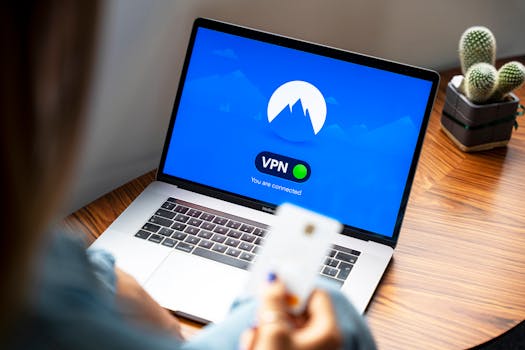
When using public Wi-Fi networks for work chats, it’s wise to use a Virtual Private Network (VPN). A VPN encrypts your internet connection, making it difficult for hackers to intercept your data. Here’s how to set one up on your iPhone:
- Choose a reputable VPN service provider.
- Download the VPN app from the App Store.
- Follow the setup instructions provided by the VPN service.
Using a VPN ensures that your work-related communications remain private, even on unsecured networks.
Educating Your Team on Best Practices
Security is not just an individual responsibility; it requires a collective effort. Educate your team about the importance of secure messaging practices. Consider the following:
- Encourage the use of secure messaging apps.
- Promote regular updates of apps and iOS.
- Discuss the importance of strong passwords and 2FA.
By fostering a culture of security awareness, you can significantly reduce the risk of data breaches within your organization.
Monitor Your Accounts and Devices
Regularly monitoring your accounts for suspicious activity is crucial. If you notice any unauthorized access or strange behavior, take immediate action, including changing passwords and reviewing security settings.
Additionally, consider using security apps that can scan for vulnerabilities and provide alerts for any unusual activity.
Conclusion
Securing work chats on your iPhone is essential in today’s digital age. By following the steps outlined in this guide, you can significantly enhance your chat security and protect sensitive information from unauthorized access. Remember, security is an ongoing process; regularly review and update your practices to stay ahead of potential threats.
Frequently Asked Questions (FAQ)
1. What is end-to-end encryption?
End-to-end encryption is a method of data transmission where only the sender and the recipient can read the messages. Even the service provider cannot access the content of the messages.
2. How can I tell if my messages are secure?
Look for indicators such as lock icons or notifications that confirm the messages are encrypted. Apps like Signal and WhatsApp display these indicators prominently.
3. Is it safe to use public Wi-Fi for work chats?
Public Wi-Fi can be risky, especially without a VPN. Always use a VPN when accessing sensitive information over public networks.
4. What should I do if I suspect my iPhone has been compromised?
If you suspect unauthorized access, change your passwords immediately, enable 2FA, and consider resetting your iPhone to factory settings. Contact your IT department if applicable.
By implementing these practices, you can ensure that your work chats on iPhone are secure, protecting both your personal and professional information.