- 1. Understanding iCloud Limitations
- 2. Using iTunes or Finder for Data Transfer
- 3. Using Quick Start to Transfer Data
- 4. Using Third-Party Software for Data Transfer
- 5. Using AirDrop for Selective Data Transfer
- 6. Exporting Contacts and Calendars Manually
- 7. Final Thoughts on iPhone Data Transfer Without iCloud
- 8. FAQ
How to Transfer iPhone Data Without iCloud
Transferring data from one iPhone to another can seem daunting, especially if you prefer not to use iCloud. Whether you’re moving to a new phone or simply want to back up your data without relying on cloud storage, there are several effective methods available. In this guide, we will explore the various ways to transfer iPhone data without iCloud, ensuring you have all the necessary information to make this process smooth and efficient.
Understanding iCloud Limitations
iCloud is a convenient option for many users, but it does come with its limitations. For instance, not everyone has sufficient storage space on iCloud, or some users may prefer to keep their data offline for privacy reasons. If you find yourself in one of these situations, don’t worry! There are numerous alternatives available.
Using iTunes or Finder for Data Transfer
One of the most reliable methods to transfer iPhone data without iCloud is using iTunes or Finder. This method allows you to create a complete backup of your old device, which you can then restore to your new iPhone.
Steps to Transfer Data Using iTunes
- Connect your old iPhone to your computer: Use a USB cable to connect your device to your computer. Open iTunes (or Finder on macOS Catalina and later).
- Backup your iPhone: In iTunes, select your device icon. Click on “Back Up Now” to create a backup of your iPhone data on your computer. Make sure to encrypt your backup if you want to save health and activity data.
- Disconnect the old iPhone: After the backup is complete, safely disconnect your old iPhone.
- Connect your new iPhone: Plug your new iPhone into the computer and select it in iTunes or Finder.
- Restore the backup: Choose “Restore Backup” and select the backup you just created. Click “Restore” and wait for the process to complete.
This method is efficient and ensures that all your data, including apps, messages, and settings, are transferred to your new device.
Using Quick Start to Transfer Data
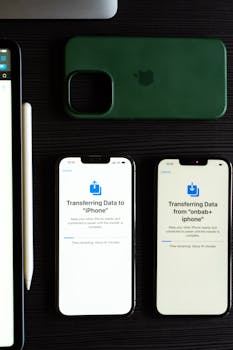
If both your old and new iPhones are running iOS 11 or later, you can use the Quick Start feature, which simplifies the process of transferring data without needing iCloud.
Steps to Use Quick Start
- Turn on your new iPhone: Place it near your old iPhone. Ensure Bluetooth is enabled on both devices.
- Follow the on-screen instructions: A Quick Start screen will appear on your old iPhone, prompting you to set up the new device.
- Authenticate: Use your old iPhone to scan the animation that appears on your new iPhone.
- Transfer data: You will be given the option to transfer data directly from your old iPhone. Select the data you wish to transfer and wait for the process to complete.
This method is not only quick but also allows for a seamless transition to your new iPhone.
Using Third-Party Software for Data Transfer
If you prefer more flexibility or specific features, consider using third-party software designed for transferring iPhone data without iCloud. There are several applications available that can help you transfer data easily.
Popular Third-Party Tools
- Dr.Fone – Phone Transfer: This tool allows you to transfer data between iOS devices without iCloud. It supports all data types, including photos, messages, and apps.
- iMobie AnyTrans: AnyTrans provides a user-friendly interface to transfer files, manage content, and create backups without using iCloud.
- Tenorshare iCareFone: This software is great for transferring data between different platforms, including iOS and Android.
Before using any third-party software, ensure it is from a reputable source and read user reviews to avoid potential data loss or security issues.
Using AirDrop for Selective Data Transfer
If you only need to transfer specific files such as photos, documents, or contacts, AirDrop is an excellent option. This feature uses Bluetooth and Wi-Fi to transfer files quickly and securely.
Steps to Use AirDrop
- Enable AirDrop: On both devices, swipe down from the upper right corner (iPhone X and later) or swipe up from the bottom (earlier models) to open the Control Center. Press and hold the network settings card, and then tap on AirDrop to enable it for “Contacts Only” or “Everyone.”
- Select the data to transfer: Open the app that contains the data you wish to transfer (e.g., Photos app for images) and select the items.
- Share via AirDrop: Tap the share icon and choose your new iPhone from the AirDrop section.
- Accept the transfer: On your new iPhone, accept the incoming files.
AirDrop is particularly useful for transferring images and videos quickly without any hassle.
Exporting Contacts and Calendars Manually
If you want to transfer your contacts and calendars without using iCloud, you can manually export them using your email service or a computer.
Steps to Export Contacts
- Use your email account: On your old iPhone, go to Settings > Passwords & Accounts and add your email account (like Gmail).
- Sync Contacts: Make sure to toggle on the option to sync contacts.
- Access on new iPhone: On your new device, add the same email account and enable contact syncing to access your contacts.
This method ensures that your contacts are available on both devices without needing iCloud.
Final Thoughts on iPhone Data Transfer Without iCloud
There are multiple ways to transfer iPhone data without iCloud, catering to various needs and preferences. Whether you choose to use iTunes, Quick Start, third-party software, AirDrop, or manual export methods, you can efficiently transfer your data while maintaining control over your privacy and storage. With these methods, you can ensure that your transition to a new iPhone is as seamless as possible.
FAQ
1. Can I transfer data from an iPhone to an Android device without iCloud?
Yes, you can use third-party applications like Dr.Fone or iMobie AnyTrans to facilitate data transfers between iPhone and Android devices.
2. Is it safe to use third-party software for data transfer?
While many third-party tools are safe, it’s essential to choose reputable software with positive reviews to avoid potential security risks.
3. Does Quick Start transfer all data types?
Yes, Quick Start allows you to transfer most data, including apps, messages, and settings, provided both devices are running iOS 11 or later.
4. How do I ensure that my data is completely backed up before transferring?
Using iTunes or Finder to create a backup will ensure that your data is securely saved on your computer before you initiate any transfer process.
By following these guidelines, you can confidently transfer your iPhone data without relying on iCloud, keeping your information secure and accessible. Happy transferring!