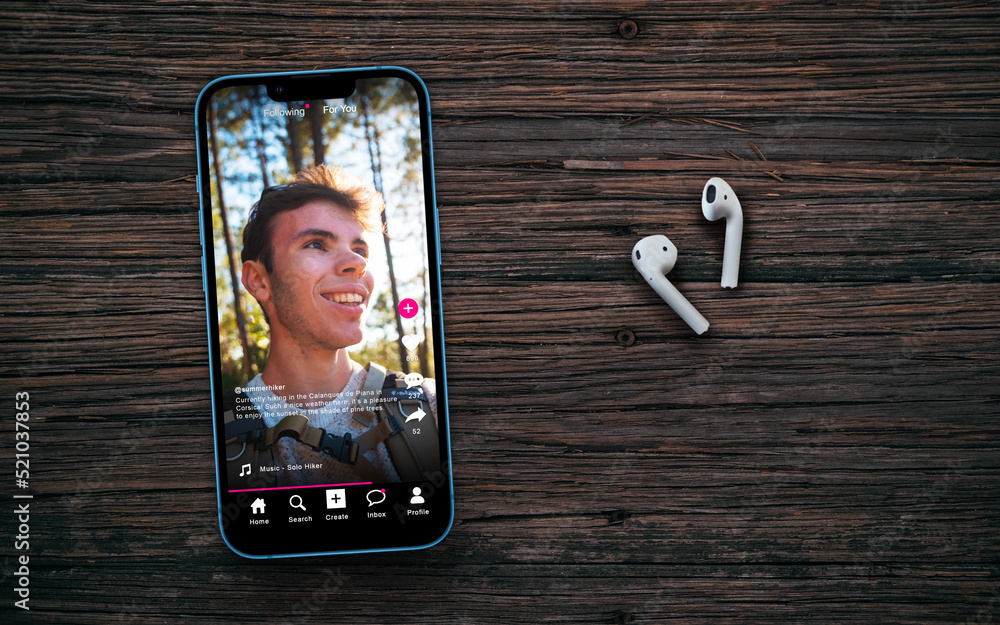
How to Use iPhone Safely for Client Video Calls
In today’s digital landscape, video calls have become an integral part of professional communication. As an iPhone user, you may often find yourself engaging in these conversations with clients or colleagues. However, ensuring the safety and security of your calls is paramount. In this blog post, we will explore how to effectively use your iPhone for client video calls while maintaining your privacy and security.
Understanding the Importance of Video Call Security
Video calls, while convenient, can expose you to various security risks. From unauthorized access to your personal information to potential breaches during the call itself, being aware of these threats is crucial. According to Apple’s official support page, understanding the tools and settings available on your iPhone can significantly enhance your security during video calls.
Choosing the Right Video Calling App
Your choice of video calling app plays a vital role in your overall security. Here are some popular options that prioritize security:
- FaceTime: This app is built into your iPhone and benefits from end-to-end encryption, ensuring that only you and the person you’re speaking with can access the call.
- Zoom: A widely used platform that offers settings for enhanced security, such as waiting rooms and password protection.
- Microsoft Teams: Known for its robust security features, it integrates well with other Microsoft services and provides secure communication.
When selecting a video calling app, always verify its security features and read the privacy policy to understand how your data will be handled.
Setting Up Your iPhone for Secure Video Calls
To maximize your safety during client video calls, consider the following settings and practices:
1. Update Your iPhone Regularly
Keeping your iPhone updated is crucial for maintaining security. Apple frequently releases updates that patch vulnerabilities. To check for updates:
- Go to Settings.
- Tap on General.
- Select Software Update to see if a new version is available.
2. Use Strong Passwords
For any apps requiring login credentials, ensure you use strong, unique passwords. A combination of letters, numbers, and symbols can help protect your accounts. Consider using a password manager to help you keep track of your passwords securely.
3. Enable Two-Factor Authentication
Two-factor authentication (2FA) adds an extra layer of security to your accounts. To enable 2FA on your Apple ID:
- Go to Settings.
- Tap on your name at the top.
- Select Password & Security.
- Tap on Two-Factor Authentication and follow the prompts to enable it.
4. Manage App Permissions
Control which apps have access to your camera and microphone. To manage these permissions:
- Go to Settings.
- Scroll down and select the app you want to modify.
- Toggle the switches for Camera and Microphone as necessary.
Creating a Safe Environment for Video Calls
The physical environment in which you conduct video calls can also impact your privacy. Here are some tips for creating a secure setting:
1. Choose a Private Location
Always select a quiet and private space for your calls, free from distractions and potential eavesdropping. Avoid public places where others may overhear sensitive discussions.
2. Be Mindful of Backgrounds
Ensure that your background is professional and appropriate. Many video calling apps offer virtual backgrounds, which can add a layer of privacy and professionalism to your calls.
3. Use Headphones
Using headphones or earbuds can help prevent your conversation from being overheard. This is especially important if you’re in a shared space or if your call involves sensitive information.
Conducting the Call Securely
Once you’re prepared, there are several practices you can follow during the call to ensure security:
1. Verify Participants
Before sharing any sensitive information, verify the identity of the participants in the call. Ensure that you are speaking with the intended client or colleague and not an imposter.
2. Avoid Sharing Sensitive Information
During the call, refrain from sharing sensitive personal and financial information. If necessary, consider discussing these details over a more secure channel.
3. Use Secure Networks
Always connect to a secure Wi-Fi network when conducting video calls. Avoid public Wi-Fi networks, as they can expose you to security risks. If necessary, consider using a virtual private network (VPN) for added security.
Post-Call Security Measures
After your video call, there are additional steps you should take to maintain security:
1. Log Out of Applications
If you used a third-party app for your call, be sure to log out afterward. This prevents unauthorized access to your account.
2. Clear Call History
Consider clearing your call history if you’re discussing highly sensitive information. To do this:
- Open the Phone app.
- Go to the Recents tab.
- Tap Edit, then select the calls you want to remove.
- Tap Delete.
3. Review App Permissions Again
After the call, it’s a good practice to review the permissions you have granted to the video calling app. Consider revoking access to the camera and microphone if you don’t plan to use the app again soon.
FAQs
What are the best apps for secure video calls on iPhone?
Some of the best apps include FaceTime, Zoom, and Microsoft Teams, all of which have strong security protocols in place.
How do I know if my video call is secure?
Look for end-to-end encryption features, use apps that prioritize security, and verify the identities of all participants before sharing sensitive information.
Can I use public Wi-Fi for video calls?
It’s advisable to avoid public Wi-Fi for video calls. If you must use it, consider employing a VPN for enhanced security.
By following these guidelines, you can confidently use your iPhone for client video calls while ensuring your privacy and security. Always stay informed about the latest security practices to protect yourself and your business in an increasingly digital world.