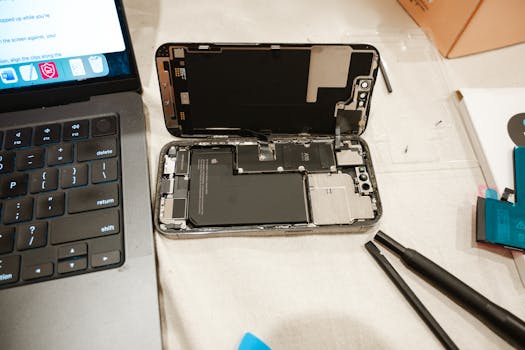
- 1. Understanding iPhone Battery Health
- 2. 1. Avoid Extreme Temperatures
- 3. 2. Optimize Your Charging Habits
- 4. 3. Enable Optimized Battery Charging
- 5. 4. Monitor Battery Usage
- 6. 5. Update iOS Regularly
- 7. 6. Manage Background App Refresh
- 8. 7. Reduce Screen Brightness and Timeout
- 9. 8. Disable Unnecessary Location Services
- 10. 9. Avoid Live Wallpapers and Motion Effects
- 11. 10. Reset Settings if Necessary
- 12. Frequently Asked Questions (FAQ)
iPhone Battery Health Tips That Actually Work
Maintaining the battery health of your iPhone is crucial for ensuring optimal performance and longevity. A well-maintained battery not only enhances your device’s efficiency but also prolongs its lifespan. In this post, we will explore several effective tips for preserving your iPhone’s battery health, supported by information from trusted sources such as Apple’s official battery page and other reputable tech websites.
Understanding iPhone Battery Health
Before diving into specific tips, it’s essential to understand how battery health is measured. Your iPhone’s battery health is represented as a percentage of its original capacity. Apple provides a built-in feature where you can check your battery’s health by navigating to Settings > Battery > Battery Health. This section not only displays the maximum capacity but also provides insights into whether your battery is operating at peak performance.
1. Avoid Extreme Temperatures
One of the most critical factors affecting your iPhone’s battery health is temperature. Apple recommends keeping your device in environments between 32° to 95° F (0° to 35° C). Exposure to extreme temperatures can lead to irreversible battery damage. For instance:
- High temperatures can cause the battery to degrade faster and may even lead to thermal events.
- Low temperatures can temporarily reduce battery life, causing your device to shut down unexpectedly.
To safeguard your battery, avoid leaving your iPhone in hot cars, direct sunlight, or near heat sources.
2. Optimize Your Charging Habits
Charging habits play a significant role in maintaining battery health. Here are some strategies to consider:
- Use Original Chargers: Always use Apple-certified chargers and cables. Non-certified accessories can deliver inconsistent power and may damage your battery.
- Avoid Overnight Charging: While modern iPhones have features to prevent overcharging, consistently charging overnight can still generate excess heat, which is harmful to battery health.
- Charge Between 20% and 80%: Keeping your battery level between 20% and 80% is ideal. Regularly letting your battery drop to 0% or charging it to 100% can cause unnecessary strain.
3. Enable Optimized Battery Charging
Apple introduced the Optimized Battery Charging feature in iOS 13. This feature learns your charging habits and waits to finish charging past 80% until you need to use your device. To enable this feature, navigate to Settings > Battery > Battery Health and toggle on Optimized Battery Charging.
This feature not only helps prolong battery health but also reduces the time your iPhone spends plugged in at maximum capacity, which can lead to heating issues.
4. Monitor Battery Usage
Keeping an eye on which apps consume the most battery can help you make informed decisions about app usage. You can track battery usage by going to Settings > Battery. Here, you will see a breakdown of battery consumption by app over the last 24 hours or the last 10 days.
To reduce battery drain:
- Consider uninstalling or limiting the use of high-drain apps.
- Use Low Power Mode when you need to extend battery life, which can be activated through Settings > Battery.
5. Update iOS Regularly
Keeping your iPhone’s operating system up to date is essential for battery health and overall performance. Apple frequently releases updates that optimize battery management and fix bugs that may negatively affect battery life.
To check for updates, go to Settings > General > Software Update. Ensure you install updates as they become available to benefit from the latest enhancements.
6. Manage Background App Refresh
Many apps refresh their content in the background, which can drain your battery. To manage this feature:
- Go to Settings > General > Background App Refresh.
- You can turn it off entirely or select specific apps that you want to allow to refresh in the background.
This simple adjustment can significantly improve your battery performance without sacrificing the functionality of essential apps.
7. Reduce Screen Brightness and Timeout
The display is one of the most power-hungry components of your iPhone. Reducing screen brightness and shortening auto-lock time can have a positive impact on battery health:
- To adjust brightness, go to Settings > Display & Brightness. You can set it to Auto-Brightness as well, which adjusts based on ambient light.
- For auto-lock, navigate to Settings > Display & Brightness > Auto-Lock and select a shorter duration.
8. Disable Unnecessary Location Services
Location services can be a significant battery drain, especially if many apps are allowed to use your location. To manage location settings:
- Go to Settings > Privacy & Security > Location Services.
- You can choose to turn off location services entirely or customize which apps have access to your location and how they can use it (e.g., while using the app or never).
9. Avoid Live Wallpapers and Motion Effects
Using live wallpapers or motion effects can consume additional battery life. To extend battery health, consider opting for a static wallpaper. You can change this by going to Settings > Wallpaper and selecting Choose a New Wallpaper.
10. Reset Settings if Necessary
If you notice significant battery issues despite following these tips, you may consider resetting your settings. This won’t erase your data but will reset system settings to their defaults. To do this, go to Settings > General > Transfer or Reset iPhone > Reset > Reset All Settings.
Keep in mind that this action will require you to reconfigure your settings, so it’s not a decision to take lightly.
Frequently Asked Questions (FAQ)
What is considered good battery health for an iPhone?
A battery health percentage above 80% is considered good. Below this, you may notice a decline in performance and battery life.
How can I check my iPhone’s battery health?
Go to Settings > Battery > Battery Health to view your iPhone’s battery health and performance capabilities.
Can I replace my iPhone battery myself?
While it’s technically possible, Apple strongly advises against self-replacement due to the risk of damaging your device. It’s best to use authorized service providers.
How often should I charge my iPhone?
Charge your iPhone when it drops to around 20% and unplug it before it reaches 100% for optimal battery health.
By following these iPhone battery health tips, you can significantly prolong the life of your device’s battery and ensure it operates efficiently. Regular maintenance and mindful usage will help you enjoy your iPhone to its fullest potential.