- 1. Understanding Battery Health
- 2. Power Saving Modes
- 3. Adjusting Screen Brightness and Display Settings
- 4. Managing App Usage and Background Activity
- 5. Network Settings and Connectivity
- 6. Notifications Management
- 7. Using Widgets Wisely
- 8. Battery Usage Insights
- 9. Updating iOS Regularly
- 10. Using Genuine Apple Accessories
- 11. Frequently Asked Questions (FAQ)
iPhone Battery Optimization Settings Explained Clearly
In an era where our smartphones are our lifelines, understanding how to maximize your iPhone’s battery life is essential. Fortunately, iOS offers a range of battery optimization settings that can help you extend the longevity of your device’s battery. In this comprehensive guide, we will delve into these settings and provide tips on how to make the most of your iPhone’s battery performance.
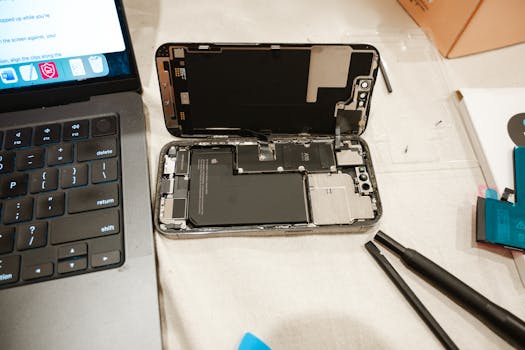
Understanding Battery Health
Before diving into the battery optimization settings, it’s important to understand what battery health means. Apple provides a feature called Battery Health, which can be found in the Settings app under Battery. This feature allows you to see the maximum capacity of your battery compared to when it was new. A healthy battery should retain 80% of its capacity after 500 complete charge cycles.
To access your battery health, go to:
- Settings
- Battery
- Battery Health
In this section, you can also enable Optimized Battery Charging, which learns your daily charging routine and helps reduce battery aging by limiting the time your iPhone spends fully charged.
Power Saving Modes
iOS includes several power-saving features that can help you conserve battery life when needed. The most prominent of these is the Low Power Mode.
Enabling Low Power Mode
Low Power Mode reduces background activity and optimizes performance by:
- Disabling Mail fetch
- Reducing visual effects
- Pausing automatic downloads
You can activate Low Power Mode by going to:
- Settings
- Battery
- Toggle on Low Power Mode
Additionally, you can add a shortcut for Low Power Mode to your Control Center for quick access.
Adjusting Screen Brightness and Display Settings
Your iPhone’s display is one of the most significant power consumers. Thus, optimizing your screen settings can greatly enhance your battery life.
Automatic Brightness Adjustment
Turning on Auto-Brightness allows your iPhone to adjust screen brightness based on ambient light conditions automatically. To enable this feature:
- Go to Settings
- Select Accessibility
- Tap Display & Text Size
- Toggle on Auto-Brightness
Reducing Screen Timeout
Shortening the time it takes for your screen to go dark can also help save battery. To change this setting:
- Open Settings
- Tap Display & Brightness
- Select Auto-Lock
- Choose a shorter time frame
Managing App Usage and Background Activity
Many apps continue to run in the background, consuming battery life even when you are not actively using them. Managing these apps is crucial for effective battery optimization.
Background App Refresh
By disabling Background App Refresh, you can prevent apps from updating in the background. To adjust this setting:
- Go to Settings
- Tap General
- Select Background App Refresh
- Choose to disable it completely or selectively for specific apps
Location Services
Location services can also drain your battery. You can control which apps have access to your location and when:
- Open Settings
- Tap Privacy & Security
- Select Location Services
- Choose apps and set to “While Using the App” or “Never”
Network Settings and Connectivity
Your connectivity settings can significantly impact battery performance. Here are key areas to consider:
Wi-Fi and Cellular Data
When Wi-Fi is available, use it instead of cellular data, as it consumes less power. Additionally, switching off cellular data when not in use can help conserve battery life.
Airplane Mode
If you’re in a low reception area or on a plane, consider enabling Airplane Mode to prevent your iPhone from constantly searching for a signal:
- Swipe into the Control Center
- Tap the airplane icon
Notifications Management
Frequent notifications can not only be distracting but also drain battery life. Managing notifications can improve your overall experience and battery performance:
Adjusting Notifications
To customize notifications:
- Go to Settings
- Tap Notifications
- Select individual apps to manage their notification settings
- Consider disabling notifications for less critical apps
Using Widgets Wisely
Widgets on your home screen are useful but can consume battery. Limit the number of active widgets and choose only those that you frequently use.
Battery Usage Insights
Understanding which apps consume the most battery can help you make informed decisions about your usage. You can view battery usage stats by:
- Going to Settings
- Tap Battery
- Scroll down to view battery usage by app
This insight allows you to identify power-hungry apps that may need to be adjusted or limited.
Updating iOS Regularly
Keep your iPhone updated to the latest iOS version, as updates often include optimizations that can improve battery performance. To check for updates:
- Open Settings
- Tap General
- Select Software Update
Using Genuine Apple Accessories
Using non-genuine chargers and accessories can lead to battery issues and performance problems. Always opt for authentic Apple products for charging and accessories.
Frequently Asked Questions (FAQ)
How can I tell if my iPhone battery needs to be replaced?
You can check your battery health by going to Settings > Battery > Battery Health. If the maximum capacity is below 80%, it may be time for a replacement.
Does Low Power Mode affect app performance?
Yes, Low Power Mode reduces background activity and optimizes performance, which may limit certain app functionalities until you turn it off.
Will turning off Background App Refresh save battery?
Yes, disabling Background App Refresh can save battery life, as apps will not run in the background to update content.
Can I use my iPhone while it is in Low Power Mode?
Absolutely! Low Power Mode does not prevent you from using your iPhone; it simply conserves battery by limiting certain features.
What is the best way to charge my iPhone to optimize battery life?
Charging your iPhone overnight with Optimized Battery Charging enabled is ideal, as it learns your routine and helps maintain battery health.
By following these tips and utilizing the available battery optimization settings, you can significantly extend your iPhone’s battery life, making it a more reliable companion throughout your day. For more details, you can visit the official Apple support page on iPhone battery and performance.