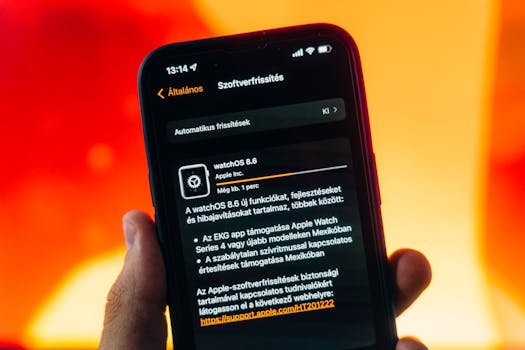
iPhone Lagging After Update? Simple Performance Fixes
Many iPhone users eagerly anticipate the latest updates from Apple, expecting enhanced features and improved performance. However, after an update, some users may notice their iPhones lagging, which can be frustrating. If you find yourself saying, “My iPhone is lagging after the update,” don’t worry—there are several simple fixes you can try to restore your device’s speed and responsiveness.
Why Does My iPhone Lag After an Update?
Before diving into the fixes, it’s essential to understand why your iPhone might lag following an update. Several factors can contribute to this issue:
- Indexing: After an update, your iPhone may be indexing files and apps, which can temporarily slow down performance.
- Background Processes: Some background processes may still be running after the update, consuming resources.
- App Compatibility: Some apps may not be optimized for the latest iOS version, leading to performance issues.
- Storage Space: If your device is low on storage, it can significantly affect performance.
Simple Performance Fixes for a Lagging iPhone
If your iPhone is lagging after an update, here are some effective solutions to consider:
1. Restart Your iPhone
One of the simplest and most effective solutions is to restart your iPhone. This can clear temporary files and refresh system processes. To restart:
- For iPhone X and later: Press and hold the Side button and either Volume button until the sliders appear. Drag the slider to turn off your iPhone. After it powers down, press the Side button again to turn it back on.
- For iPhone 8 and earlier: Press and hold the Top (or Side) button until the slider appears. Follow the same steps as above.
2. Check for App Updates
After an iOS update, app compatibility can be an issue. Ensure all your apps are updated to their latest versions:
- Open the App Store.
- Tap on your profile icon at the top right.
- Scroll down to see pending updates and tap Update All.
3. Free Up Storage Space
Low storage can cause your iPhone to lag. To check your storage:
- Go to Settings > General > iPhone Storage.
- Review the storage used by each app and delete any unnecessary files or apps.
Apple recommends keeping at least 10% of your iPhone’s storage free for optimal performance. If you need help, consider using cloud storage solutions like iCloud for photos and files.
4. Disable Background App Refresh
Background App Refresh allows apps to refresh their content when on Wi-Fi or cellular in the background. While this feature is useful, it can also slow down your device:
- Go to Settings > General > Background App Refresh.
- Select Off to disable it completely or choose Wi-Fi to limit it.
5. Reset All Settings
If you’ve tried the other methods and your iPhone is still lagging, consider resetting all settings. This won’t delete your data but will reset Wi-Fi passwords, wallpapers, and privacy settings:
- Go to Settings > General > Transfer or Reset iPhone > Reset > Reset All Settings.
6. Update iOS Version
Apple frequently releases minor updates to address bugs and improve performance. Check if there is a new update available:
- Go to Settings > General > Software Update.
- If an update is available, follow the prompts to install it.
7. Perform a Factory Reset
If all else fails and your iPhone is still lagging significantly, consider performing a factory reset. This will erase all data on your device, so ensure you back up your data first:
- Go to Settings > General > Transfer or Reset iPhone > Erase All Content and Settings.
After the reset, you can restore your data from a backup or set it up as a new device for optimal performance.
Additional Tips to Prevent Lag
Once you’ve resolved the lagging issue, consider these additional tips to maintain your iPhone’s performance:
- Keep iOS Updated: Regularly check for and install iOS updates to ensure your device runs smoothly.
- Limit Widgets: While widgets can be handy, too many active widgets can slow down your device. Remove any unnecessary ones.
- Reduce Motion Effects: Go to Settings > Accessibility > Motion and toggle on Reduce Motion.
When to Seek Professional Help
If you’ve tried all of the above fixes and your iPhone continues to lag, it may be time to seek professional help. There could be underlying hardware issues or other factors affecting performance. You can contact Apple Support or visit an authorized service provider for further assistance. For more information, visit the official Apple Support page.
Frequently Asked Questions
Why is my iPhone slow after the latest update?
After an update, your iPhone may be indexing files and apps, running background processes, or dealing with app compatibility issues, all of which can affect performance.
Will restarting my iPhone help with lag?
Yes, restarting your iPhone can clear temporary files and refresh system processes, often improving performance.
How can I free up storage on my iPhone?
You can free up storage by deleting unused apps, removing old photos and videos, and using cloud storage solutions to offload files.
Is it safe to perform a factory reset?
Yes, a factory reset is safe, but it will erase all data on your device. Be sure to back up your important information before proceeding.
By following these straightforward solutions, you can restore your iPhone’s performance after an update and enjoy a smoother user experience. Remember, regular maintenance and updates can help keep your device running at its best.