- 1. What Are iPhone Security Alerts?
- 2. Types of iPhone Security Alerts
- 3. Understanding Login Alerts
- 4. Responding to Two-Factor Authentication Alerts
- 5. App Permissions Alerts: Know What You’re Allowing
- 6. The Importance of Software Update Alerts
- 7. Recognizing Phishing Warnings
- 8. What to Do if You Receive a Security Alert
- 9. Best Practices for iPhone Security
- 10. Frequently Asked Questions (FAQ)
iPhone Security Alerts Explained and What to Do Immediately
In an era where digital security is paramount, iPhone security alerts serve as crucial notifications designed to protect your personal data and privacy. Whether it’s a warning about a suspicious login attempt or a notification regarding a software update, understanding these alerts can significantly enhance your iPhone’s security posture. This blog post will break down the various types of security alerts you might encounter, their implications, and the immediate actions you should take to safeguard your device.
What Are iPhone Security Alerts?
iPhone security alerts are notifications generated by your device to inform you about potential threats or necessary updates. These alerts can come from various sources, including iOS itself, third-party applications, or your Apple ID account. The main aim is to keep you informed and prompt you to take action to protect your data.
Types of iPhone Security Alerts
Understanding the types of alerts you may receive can help you respond appropriately. Here are the most common categories of iPhone security alerts:
- Login Alerts: Notifications that inform you of attempts to access your Apple ID from unrecognized devices or locations.
- Two-Factor Authentication (2FA) Alerts: Messages confirming that a login attempt is happening, requiring you to verify your identity.
- App Permissions Alerts: Notifications about apps requesting access to sensitive data or features, such as your location, contacts, or photos.
- Software Update Alerts: Reminders to install the latest iOS updates, which often include important security patches.
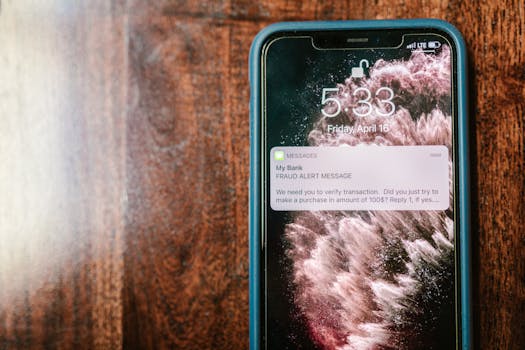
- Phishing Warnings: Alerts that warn you about suspicious emails or messages that may attempt to steal your personal information.
Understanding Login Alerts
Login alerts are among the most critical iPhone security alerts you may encounter. When you receive a notification that someone is trying to access your Apple ID, it is essential to act quickly:
- Check the location and device type. If you do not recognize them, immediately change your password.
- Enable Two-Factor Authentication (2FA) if you haven’t already. This adds an extra layer of security to your account.
- Review your account settings to ensure no unauthorized changes have been made.
Responding to Two-Factor Authentication Alerts
Two-Factor Authentication is an essential security feature that helps prevent unauthorized access to your account. When you receive a 2FA alert, follow these steps:
- Verify Your Identity: If you initiated the login, proceed with the verification process. If not, it’s likely a security threat.
- Change Your Password: If you suspect unauthorized access, change your Apple ID password immediately.
- Check Account Activity: Review recent activities on your Apple ID account to identify any unauthorized actions.
App Permissions Alerts: Know What You’re Allowing
When apps request access to your personal data, you receive app permissions alerts. It’s crucial to be cautious:
- Evaluate the Request: Always ask yourself if the app needs that information to function correctly. For example, a photo editing app may need access to your photos, but a flashlight app should not.
- Manage Permissions: You can manage app permissions by going to Settings > Privacy. Review which apps have access to your data and revoke permissions if necessary.
The Importance of Software Update Alerts
Software update alerts are vital iPhone security alerts that ensure your device is running the latest version of iOS, which includes crucial security fixes:
- Always Update: Make it a habit to frequently check for software updates. Go to Settings > General > Software Update to see if you’re running the latest version.
- Automatic Updates: Enable automatic updates to ensure your device receives important security patches without your intervention.
Recognizing Phishing Warnings
Phishing scams are increasingly sophisticated, often masquerading as legitimate messages from Apple or other services. If you receive a phishing warning, consider taking these actions:
- Do Not Click: Avoid clicking on links or downloading attachments from suspicious emails or messages.
- Report Suspicious Activity: Use Apple’s reporting tool to notify them about phishing attempts.
- Educate Yourself: Familiarize yourself with common phishing tactics to better protect yourself in the future.
What to Do if You Receive a Security Alert
Receiving an alert can be alarming, but knowing how to respond can mitigate potential risks:
- Stay Calm: Not all alerts indicate an immediate threat. Evaluate the situation before taking action.
- Follow the Instructions: Most alerts provide clear instructions on what to do next. Follow them promptly.
- Consult Apple Support: If you’re unsure about an alert, consult Apple’s official support pages or contact their customer service.
Best Practices for iPhone Security
Beyond reacting to alerts, adopting best practices can enhance your overall iPhone security:
- Regular Backups: Use iCloud or iTunes to back up your data regularly. This ensures you don’t lose important information in case of a security breach.
- Use Strong Passwords: Create complex, unique passwords for your Apple ID and other accounts. Avoid using the same password across multiple sites.
- Enable Find My iPhone: This feature can help you locate your device if it’s lost or stolen and can remotely wipe your data if necessary.
- Be Cautious with Public Wi-Fi: Avoid accessing sensitive information over public networks. If necessary, use a VPN for additional security.
Frequently Asked Questions (FAQ)
What should I do if I get a login alert for my Apple ID?
If you receive a login alert and do not recognize the device, change your password immediately and enable Two-Factor Authentication.
How can I manage app permissions on my iPhone?
You can manage app permissions by going to Settings > Privacy and reviewing which apps have access to your data.
Are software updates really necessary for security?
Yes, software updates often include security patches that protect your device from vulnerabilities. Always keep your device updated.
What are some signs of a phishing attempt?
Look for suspicious emails or messages that ask for personal information, contain misspellings or grammatical errors, or use urgent language.
In conclusion, staying informed about iPhone security alerts and understanding how to respond promptly can significantly reduce your risk of falling victim to cyber threats. By adopting best practices and being vigilant, you can help ensure that your personal information remains secure.